Just to give you a quick impression of our activities.
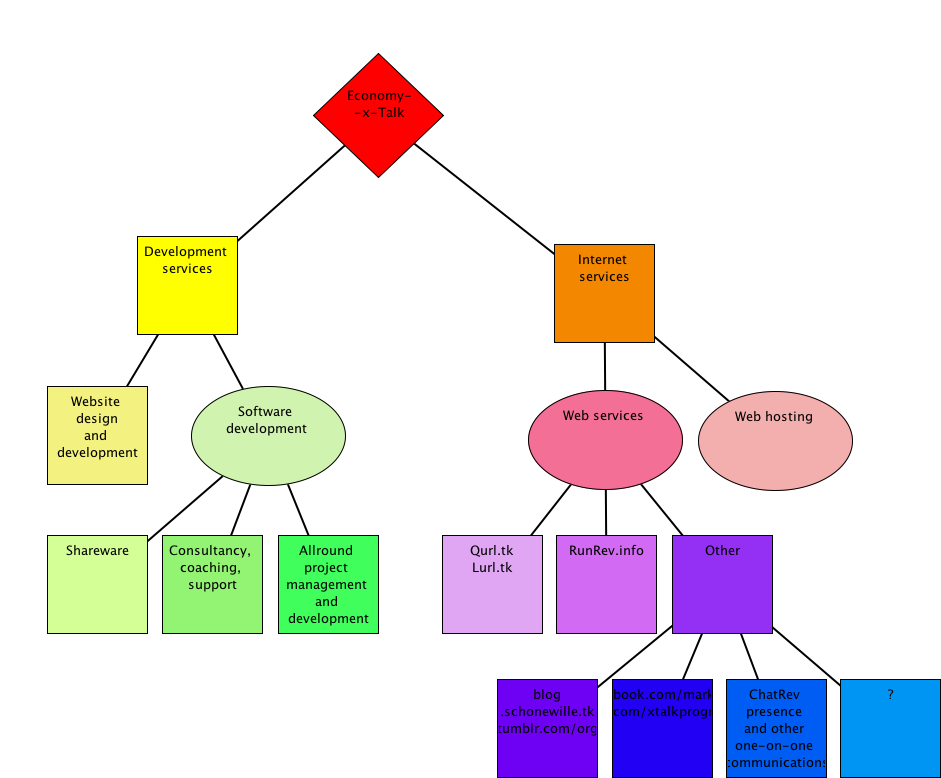
This overview was made with Strõm Flow Chart Software.
Download Strõm at http://flowproject.economy-x-talk.com
Just to give you a quick impression of our activities.
This overview was made with Strõm Flow Chart Software.
Download Strõm at http://flowproject.economy-x-talk.com
Everybody who ‘likes’ Economy-x-Talk on Facebook will receive a free license as soon as we have 50 fans. Just press the ‘Like’ button on our Facebook page and check back later to read how to obtain your license. Don’t forget to ask your friends to ‘Like’ Economy-x-Talk too. The more people do this, the more quickly you get your free gift.
As soon as Economy-x-Talk has 50 fans on Facebook, we will be sending you your free license. If we have more than 50 fans on 30 Sept 2010, we will still send all fans a free license for Color Converter. Spread the word, on Facebook and Twitter. Do your friends this favour and let them know about this completely free gift. The more people you tell about this offer, the more quickly you will have your free license.Here’s the text you can post on Twitter (or anywhere else):
‘Like’ Economy-x-Talk on Facebook now and get a free Color Converter license http://qurl.tk/gn #freebie Please RT Color Converter can be used to convert color values between various colour spaces, such as RGB, CMYK, RAL, XYZ and Unix colour names. Additionally, Color Converter resizes your pictures more easily and quickly than any other programme, as it takes away the need to even think about the actual size of a picture: just enter the size of the area you want your picture to fit in. More information about Color Converter at: http://www.color-converter.com/ Whenever you don’t get a choice whether to share information or not, your privacy is violated. It doesn’t matter whether the information is said to be anonymous or encrypted or non-sensitive. Why?
– The act of sending information is in itself informative too: the receiver knows that you exist, even though the receiver may not know your name and address.
– As soon as you contact a server, the owner of the server knows that you are on-line and may find you through your IP number (sometimes even if you use a remote proxy server).
– In the case of Apple’s problem reporter, as soon as you contact Apple’s server, Apple knows that you are using a Mac with Snow Leopard and just made a programme on your Mac crash.
– You are also telling Apple the configuration of your computer and even which programme you just used (e.g. Google Earth, a web browser, LimeWire, or Transmit).
– To most users, it is unclear which information is sent to Apple, which is a security violation by itself: you wouldn’t let me into your house, if I tell you I’ll take something with me without telling you what I’m taking.
– Worst of all: Apple doesn’t give you an option to not send any information: Apple comes into your house, asks for permission to take something, but doesn’t accept “no”!
For these reasons, it is really important to disable the Problem Reporter on Mac OS X Snow Leopard, until Apple makes the problem reporting process more transparent and provides an option to not send the information. Here’s how.

Choose the third option “Server” to turn off the display of the Problem Reporter. The safest option is probably to give the Problem Reporter insufficient permissions to run while at the same time setting the Crash Reporter Preferences to “Server”, because nowhere I could find documentation on whether the Crash Reporter really won’t contact Apple’s server if “Server” has been selected.
Let me share a little success story with you. One of the most successful commercial products I have created with RunRev is Color Converter. I released Color Converter 1.0 almost 3 years ago and since that time Economy-x-Talk has sold numerous licenses for this product.
During those years I spent a few 100 euro on Revolution licenses and spent about two weeks programming. During the past 3 years I earned back my investment multiple times. RunRev is the ideal development environment for this little application. The way RunRev converts pictures to imageData makes complex analyses really easy. RunRev allows me to write a complex tool with minimum effort.
NIJMEGEN (THE NETHERLANDS), 3 September 2010 — Economy-x-Talk has released Color Converter 3.0. Color Converter is a low-cost colour conversion tool for professional designers and everyone who needs to work with colour on a computer. This tool encodes colour values from and to any of the following colour spaces: CMYK, H.Lab, HEX/HTML, HSV, RAL, RGB, XYZ and X11 Colour Names. Additionally, it provides an RGB-based brightness value.
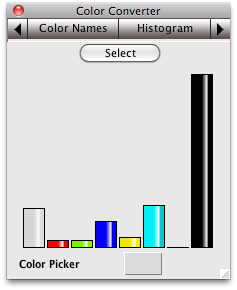
Color Converter can also analyse any area of your (primary) screen and display a colour histogram based on the results of the analysis. A long list of X11 colour names is easy to search and colour names can be converted to all other colour spaces with a click of the mouse. With the release of Color Converter 3, we have added the ability to resize pictures.“We started with a very tiny utility, with RAL-to-RGB conversion only” says Mark Schonewille, spokesman of Economy-x-Talk, “and have developed the software into a light-weight but sophisticated conversion tool. I’m really delighted to see how popular this programme has become amongst both amateur and professional graphical designers.” He adds: “With the addition of the resizing tools, Color Converter has not become more than just a colour analysis tool. It has become really a handy utility that you will be using all day long.”
Color Converter 3.0 can be downloaded from it’s own website. The software is available for MS Windows, Mac OS X and Linux. Color Converter 3 is free a free update for current license holders of Color Converter 2. For more information about Economy-x-Talk, please visit:Economy-x-Talk has created a web version of the Installer Maker Plug-in installer. To install the plug-in, all you need to do is download a 60K stack and open it in Revolution. This stack can be downloaded here.
Use the Installer Maker Plug-in to wrap your Revolution standalones in an installer for Windows (XP, Vista, 7) and Mac OS X (10.3 and later). This installer maker provides several additional options and features, including multiple languages and an uninstaller.
Wrapping a standalone in an installer is just a matter of minutes. There are also special options available, which allow you to include a Read Me file, to start your programme automatically after installation and more.
Note that you can use the Installer Maker Plug-in for RunRev standalones, but also for any other software.
Here’s a script, which I just posted to the Revolution forum. I post it on my blog, because I like the script and it might be useful to many people. It should also be simple to translate this to PHP for instance.
This script generates passwords with length theLength, choosing consonents and vowels semi-randomly such as to keep the password speakable. This function allows for double consonants while still keeping the password speakable.
function speakablePassword theLength
put “bcdfghjklmnprstwyz” into myConsonants
put “aeiou” into myVowels
put “” into myPass
repeat myPasswordLength
if char -1 of myPass is in myConsonants then
if char -2 of myPass is in myConsonants or
length(myPass = 9) then
put any char of myVowels after myPass
else
if any item of “true,false” then
put any char of myVowels after myPass
else
put any char of myConsonants after myPass
end if
end if
else
put any char of myConsonants after myPass
end if
end repeat
return myPass
end speakablePassword
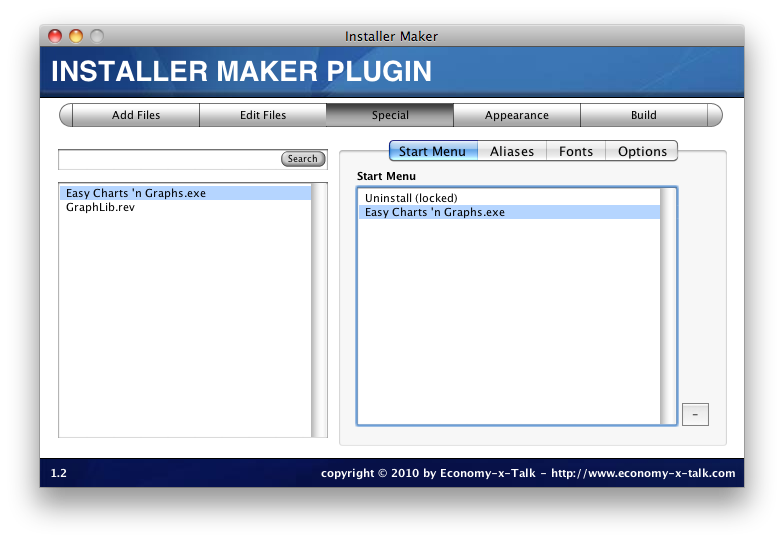
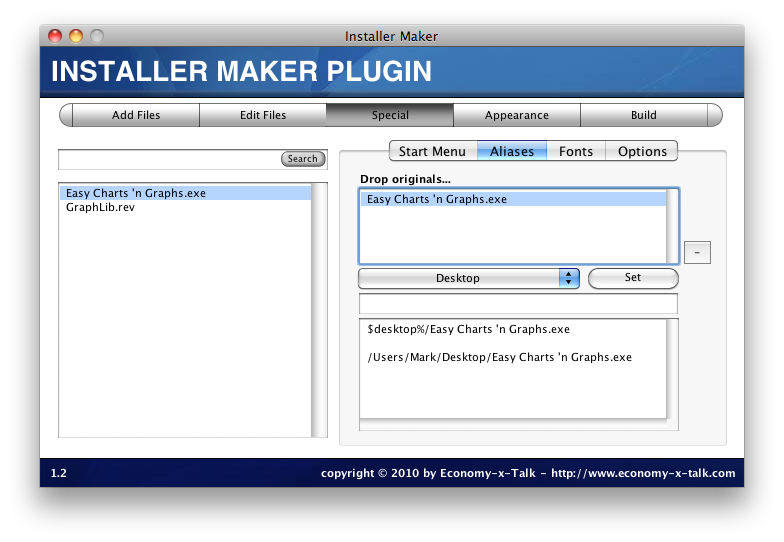
A few days ago, Economy-x-Talk’s support department received a question about creating shortcuts with the Installer Maker Plugin for Runtime Revolution. More specifically, a user of the plug-in asked how to set up the installer as to create shortcuts in the start menu and on the desktop. Here’s the answer.
To add shortcuts to the Start menu on Windows, follow the following steps after you have added all necessary files:If you want to have a shortcut on the desktop, follow the following steps.
1) go to the Special section
2) select the Aliases tab on the Special section
3) drag a file (e.g. the main executable) from the list on the left into the top field on the right
4) make sure that the file in the top field is selected (hilighted)
5) now choose Desktop from the option menu button in the middle of the window, next to the Set button
6) you can leave the field below the option menu button empty and press the Set button
Here’s how to control VLC from your iPhone without having to buy a commercial iPhone application for it. There are beautiful commercial applications in the iTunes store that to the task, but if you’re happy to use a simple interface, you don’t need that.
The applications from the iTunes store use VLC’s web interface to connect to VLC. We will do exactly the same, but we’ll use the Safari browser of your iPhone. To make the web interface available to other devices on your network, simply choose Web Interface from the Add Interface submenu in the VLC application menu.The web interface can be accessed by entering the IP address of your computer in Safari. Usually, you can find the IP address in the Network preferences panel of the System preference.
Open the System preferences by choosing “System Preferences…” from the Apple menu (in the top-left of your computer screen). Click on the Network symbol. Click on the Airport item in the column on the left. Click on Advanced to see more info and click on the TCP/IP tab in the next window. Next to “IPv4 Address” you will find the IP number, for example 169.254.01.64. Now open Safari on your iPhone. Create a new Safari window and enter the IP address of your computer followed by “:8080”. This means that now have an address similar but probably unequal to 169.254.01.64:8080. The VLC control panel will now appear in your Safari browser on your iPhone. If you have dragged a number of files into the file list of VLC on your computer, then you will see these files appear as links in Safari. Click on one of the links to play the corresponding file on your computer. You can now save this address as a bookmark or shortcut by pressing the + sign at the bottom of your Safari screen to make sure that you have it available when you need it.This trick also works with any iPod Touch or iPad with WIFI or 3G connection.

This video tutorial shows how to install the Installer Maker plugin for Runtime Revolution. You can download the Installer Maker plugin at http://rrinstallermaker.economy-x-talk.com