Make Time Machine Back Up to an Internal Hard Disk on another Apple Mac

Time Machine only works with external hard disks and specific network disks. It won’t work with the internal hard disk of another (spare) Mac, which is a shame. Why not literally use your old PowerMac as a backup machine?

That’s what I did, using this and this hint on Mac OS X Hints. I got Time Machine to work. It backs up my MacBook on my PowerMac. Unfortunately, I’m not entirely sure that it works correctly, since it didn’t create a complete backup of my MacBook and it doesn’t show past dates in the sidesbar for whatever reason.

Still, I think I should write down what I did. Try it yourself and let me know if it works (or not).

Connect another Mac (the host) to yours, preferably over a wired network. Make sure that the hard disk or partition that you want to use for backing up is mounted on the Mac (the client) that you want to back up.

Open Disk Utility and click on the New Image icon to Create a sparse bundle image on your client Mac. It doesn’t need to be big, as Time Machine will expand it as necessary.

Screen_shot_2011-04-12_at_00

Make sure that the name of the disk image file is equal to the name of your client Mac. You need to enter this name in the field labelled Save As. The name of the disk volume is Time Machine Backups. You enter this into the field labelled Name. Just choose any reasonable size for your new disk image. The format has to be Mac OS Extended (Journaled). Don’t use encryption and set the partition to Single Partition – Apple Partition Map. The image format must be Sparse bundle disk image.

Create a new text file with your favourite text editor. Paste the following code into your text file

<?xml version=”1.0″ encoding=”UTF-8″?>
<!DOCTYPE plist PUBLIC “-//Apple//DTD PLIST 1.0//EN” “http://www.apple.com/DTDs/PropertyList-1.0.dtd”>
<plist version=”1.0″>
<dict>
<key>com.apple.backupd.HostUUID</key>
<string>YOURUUIDHERE</string>
</dict>
</plist>

You need to replace YOURUUIDHERE with the UUID of your client computer. To find your UUID, choose About this Mac from the Apple menu (in the top-left of your screen). A small window titled About this Mac appears. Click on the button labelled More Info… to open System Profiler. On the left of the window, you will see a main category Hardware, which need to be selected. In the text area on the right, you will see a line labelled “Hardware UUID”. You need to replace YOURUUIDHERE with the number (including the dashes) that appears on this line.

When saving the text file, call it “com.apple.TimeMachine.MachineID.plist” (without the quotes). You can save it on the desktop temporarily. We’ll refer to this file as the plist file.

Now we need to copy the plist file into the sparse bundle. To make this possible, right-click (or control-click) in the sparse bundle and choose Show Package Contents from the pop-up menu. A new window with the name of your sparse bundle appears. Move the plist file from your desktop into the sparse bundle. If the plist file doesn’t disappear from your desktop now, you can safely delete it.

Copy the sparse bundle to the hard disk on your host Mac and delete the original.

Now you need to tell Time Machine to allow for using shared network volumes. These network volumes on other Macs (using the AFP or SMB protocol) are unsupported by default. To enable access to shared network volumes, you need to enter the following line in the terminal:

defaults write com.apple.systempreferences TMShowUnsupportedNetworkVolumes 1

and press return. Now you can turn on Time Machine in the Time Machine preferences panel. Open System Preferences and go to the Time Machine preferences panel. Click on the Off-On button to turn on Time Machine.

On the right side of the prefeences panel, you will see two buttons appear: Select Disk and Options. Make sure that the shared volume of your host Mac is still mounted on your client Mac. Click on theh Select Disk button and select the shared volume. If you are asked to enter your password, enter the user name and password for the host Mac, not the client Mac. Make sure to store the password in your Keychain. If your host Mac has a small hard disk, you can use the Options button to exclude your system folder and applications folder.

Time Machine should start backing up your client Mac any moment now.

On my own machines, Time Machine seems to work, but I still don’t have a complete back-up of my client Mac. Any recommendations are welcome and I’ll post any additional information that reaches me here on this blog.

MySQL solution for LiveCode which “just works”

If you don’t like bragging, just ignore this post and move on 🙂

I believe many are waiting for LiveCode features that just work out of the box. An important example of this is unicode, which is still a big problem in many respects. For example, while unicode is pretty much the standard for exchange of data among programmes and between programmes and the operating system nowadays, LiveCode still doesn’t let you retrieve unicode text directly from the command line, external plugins and database drivers. Fortunately, LiveCode’s TCP sockets allow for exchange of binary data, thereby creating an opportunity to retrieve unicode data.

The past few days, I created a simple command line interface to send commands to a php script on a server. Together with PHP, this interface makes MySQL just work –something I can’t resist showing off.

Screen_shot_2011-04-08_at_02

The last 5 lines show how I can save Japanese characters to the database and get them back as Japanese characters. Nothing special you might say, as a C++ programmer, but for LiveCode it is quite something, made possible by using PHP as a layer between LiveCode and MySQL.

Mijn ervaring met Skype 5 – My experience with Skype 5 (Dutch)

Enige tijd geleden werd ik min of meer gedwongen om Skype naar Skype 5 te updaten, omdat de oude Skype steeds slechter ging werken. Of dat nu wel verstandig was…?

Skype neemt nu een derde van mijn beeldscherm in beslag. Dat is ronduit belachelijk. Ik gebruik Skype ook om mee te bellen, maar helaas gaat dat met Skype 5 in de helft van de gevallen mis. Bijv. als een nummer in gesprek is, dan krijg ik geen in-gesprektoon, maar een “internal error”, zodat ik geen idee heb van wat er aan de hand is tot ik het met een gewone telefoon probeer.

De gebruikersnaam van een gebruiker is alleen te zien in de groene bel-button in het profiel. Dat vind ik wel een hele rare plek om zulke essentiële informatie te tonen. Dan zien de meeste buttons er ook nog eens heel anders uit dan de standaard Mac OS X-buttons, wat nogal onwennig aanvoelt.

De enige manier om een chat te sluiten schijnt command-W te zijn (ofwel appeltje-W) of Close Conversation uit het File-menu, terwijl het in de vorige Skype mogelijk was om gewoon een button aan te klikken om een chat te sluiten. Het duurde me weken om hier achter te komen.

Een andere volstrekt belachelijke verandering van Skype is de weergave van on-line contacten in een apart venster, de “Contact Monitor”, terwijl het onmogelijk is diezelfde lijst op te nemen in de contact-lijst aan de linker kant van het venster. Het is werkelijk van de gekke dat Skype het meest essentiële onderdeel van het programma, de on-line contactlijst, niet in het hoofdvenster van het programma laat zien.

Screen_shot_2011-03-31_at_12

Nog een probleem is het ontbreken van een knop om de contactlijst aan de linker kant van het venster te doen verdwijnen. Op dit moment kun je alleen maar op zoek naar een onzichtbare scheidslijn aan de rechter kan van de linker schuifbalk en als je die gevonden hebt kun je de breedte van de contactlijst aanpassen en eventueel verbergen. Heel onhandig, omdat veel mensen die scheidslijn nooit vinden.

Een nieuwe bug is er de oorzaak van dat de instelling “Identify SMS messages by…” verkeerd wordt weergegeven. Volgens mijn Skype-account op de website worden mijn SMS-jes, die ik via Skype verstuur, met mijn eigen telefoonnummer als afzender op de mobieltjes van de ontvanger getoond, maar in de Skype preferences staat dat mijn Skype naam wordt weergegeven. Deze instelling wordt dus fout weergegeven. (Ik heb dit gecontroleerd en de ontvanger ziet wel degelijk mijn nummer, omdat ik dit op de website zo heb ingesteld).

Omdat zoeken naar mensen in Skype-me modus de laatste tijd niet goed meer werkte heeft Skype er maar voor gekozen deze feature helemaal weg te laten. Ooit, lang geleden, was het juist deze feature die mij over de streep trok om Skype als alternatief voor ICQ te gaan gebruiken. Voor zover ik weet, bestaat er nu geen enkel programma meer met een dergelijke feature (misschien nog het Poolse Gadu-gadu; hoe zit dat eigenlijk met MSN, dat ik niet gebruik?).

Voordelen zijn er bijna niet, wel enkele verbeteringen in de “lekker belangrijk”-categorie. De foto’s worden op de Mac-versie nu net als op de Windows-versie groot weergegeven, indien mogelijk. Een bug die het volgen van de mood messages steeds weer uitschakelde is nu gerepareerd.

Leuk is voor sommigen ook dat Growl-notifcations nu beter zijn in te stellen en aan je eigen voorkeuren aan te passen. Bovendien kun je nu alle geluidseffecten in één keer uitschakelen. Je kunt er ook voor kiezen Skype op alle speakers en koptelefoons etc. te laten horen als de “telefoon” overgaat. Dat laatste is wel handig.

Een ander nieuwigheidje is de mogelijkheid om door je contacten te bladeren in een soort cover-flow-modus. Helaas is dit in een professionele werkomgeving een volstrekt nutteloze functie, omdat deze manier van zoeken veel te langzaam is.

Je kunt nu al je contacten in het rechter gedeelte van het Skype venster bekijken door op Skype in de Contacts-sectie in de contactlijst (links) te klikken. Helaas neemt deze lijst (rechts) zoveel ruimte in beslag, dat het onmogelijk is om in één oogopslag, of eventueel twee oogopslagen, een goed overzicht van al je contacten te krijgen. Het is onmogelijk om een compactere weergave van deze lijst te verkrijgen.

Misschien had ik de kleine probleempjes uit Skype 2.8 maar voor lief moeten nemen. Wat mij betreft is Skype er echt op achteruit gegaan en als je geen directe noodzaak ziet om te updaten, dan raad ik het je ten zeerste af. Heb je al geupdate en mocht je willen downgraden, dan kun je hier de versie van jouw keuze vinden.

Restrict an FTP account to its Home directory on Mac OS X

I found this on the MacNN website and it still works (Mac OS X 10.4.11):

1) Create a text file with TextEdit on your dekstop and call this file “ftpchroot” (without the quotes)
2) Put the names of the accounts you want to be restricted into the file, 1 per line
3) Press Shift-Command-K and type “/etc” to go to the “/etc” directory
4) Copy the file “ftpchroot” to the “/etc” directory (you may need to enter your password)
5) Turn off FTP sharing in the Sharing control panel of the System Preferences window and turn it back on

Any user whose account is listed in this file will be limited to his/her dirrectory when they log on. They can only move “down” in sub-directories (if they exist), but they can’t move “up” any higher than their root dir. This works on OS X client versions only, NOT on OS X Server.

Installer Maker 1.6.1 Standalone Edition

Installer_maker_box_64px

About a year and a half ago, Economy-x-Talk released the Installer Maker as a plugin for LiveCode (still Revolution at the time). One of the limitations of the plug-in is that other stacks should be closed before building an installer in the IDE.

We have received many requests to get around this limitation. As a solution, a standalone version of the Installer Maker is now offered. This means that you can experiment in the IDE, save your stacks to your standalone folder, and immediately re-build your installer, without having to set up everything again (as long as you keep Installer Maker running).

Moreover, from now on the Installer Maker allows you to build a test installer without buying a license first. You can run the test installer on the computer on which it is built.

Installer Maker 1.6.2 is the first version that is also available as a standalone. There might be a few small glitches, which will naturally get fixed in due time.

Please, show me that our efforts to meet your requirements are not in vain and upgrade your license or buy one if you haven’t one yet 😉

You can download Installer Maker at
http://installermaker.economy-x-talk.com/

and the Installer Maker Plugin for LiveCode at
http://rrinstallermaker.economy-x-talk.com/

Zip files and folders (including empty folders) with LiveCode

/*
iZip 1.0.1
Make a zip file recursively without the
need for a callback message. This script includes empty folders
if there are any.
—————————————————————-
Usage: iZip path[,true|false]

Parameters:
The first parameter is a string containing the path to a file or
folder. The zip file will have the same name as the original
file or folder, appended by “.zip”, and is created in the same
directory as the original.
The second parameter is a boolean excluding “.DS_Store” files if
true and includes them if false or empty.

Error messages:
If the zip external encounters a problem, an  error message is
returned of the form “error: file not open”.

Comment:
You need to write your own script to check that the revZip
external is available.

Copyright © 2011 by Economy-x-Talk
http://www.economy-x-talk
This script is free to use. Please give credit if you do. Always
include this copyright notice in a visible place in your
software.
*/
on iZip theFile,theExcludeDsStore
     if not (there is a file theFile or there is a folder theFile) then
          return “error: file not found”
     end if
     set the itemDel to slash
     put number of items of theFile into myAbsolutPathLength
     put theFile into myFolderlist
     put theFile & “.zip” into myZipFile
     // need to zip the whole thing recursively
     // item names should probably be the relative folder paths
     put the directory into myOldDir
     put 0 into myCounter
     revZipOpenArchive myZipFile,”write”
     put the result into rslt
     if rslt is not empty then
          set the itemDel to comma
          return “error:” && item 2 of rslt
     end if
     if there is a file theFile then
          put last item of theFile into myItemName
          revZipAddItemWithFile myZipFile,myItemName,theFile
          put the result into rslt
          if rslt is not empty then
               set the itemDel to comma
               return “error:” && item 2 of rslt
          end if
     else // folder
          repeat forever with messages
               add 1 to myCounter
               put line 1 of myFolderList into myCurrentFolder
               // add folder
               put item myAbsolutPathLength to -1 of
                      (myCurrentFolder & “//”) into myItemName
               revZipAddItemWithFile myZipFile,myItemName,””
               put the result into rslt
               if rslt is not empty then
                    set the itemDel to comma
                    return “error:” && item 2 of rslt
               end if
               set the directory to myCurrentFolder
               put the files into myFileList
               // zip the files
               repeat for each line myFile in myFileList with messages
                    if (myFile is “.” or myFile is “..”) or
                           theExcludeDsStore is true and myFile is
                           “.DS_Store” then next repeat
                    put item myAbsolutPathLength to -1 of
                           (myCurrentFolder & slash & myFile) into
                           myItemName
                    if char -4 to -1 of myFile is “.zip” then
                         revZipAddUncompressedItemWithFile
                                myZipFile,myItemName,myFile
                    else
                         revZipAddItemWithFile myZipFile,myItemName,myFile
                    end if
                    wait 0 millisecs with messages
               end repeat
               put the folders into myTempFolderList
               repeat for each line myFolder in myTempFolderList
                    if myFolder is “.” or myFolder is “..” then next repeat
                    put cr & myCurrentFolder & slash & myFolder after
                           myFolderList
               end repeat
               delete line 1 of myFolderList
               if number of lines of myFolderList is 0 then exit repeat
               wait 0 millisecs with messages
          end repeat
     end if
     revZipCloseArchive myZipFile
     put the result into rslt
     if rslt is not empty then
          set the itemDel to comma
          return “error:” && item 2 of rslt
     end if
     set the directory to myOldDir
end iZip

What is a reasonable privacy statement?

Here’s my rather personal interpretation of a privacy policy statement. As a source, I used the Daily’s statement. You can find the full text here http://www.thedaily.com/privacy/ . I might be slightly exaggerating, maybe not. Honestly, I don’t know. Just read it.

“When you use the Services, we may collect certain non-personally identifiable information about that use. For example, […], our servers receive and record information about your computer and browser, including potentially your IP address, browser type, and other software or hardware information. […] we may also collect transactional information such as a unique device identifier assigned to that device (“UDID”), your geolocation, or other transactional information for the device in order to serve content to it. We also may use cookies and other tracking technologies […], which are comprised of small bits of data that often include an anonymous unique identifier.”

If you use our services, we will know who you are, where you are, what you do and with whom you do it.

“Third parties […] may also use these technologies […]. We do not control these third-party technologies and their use is governed by the privacy policies of third parties using such technologies. For more information about third-party ad networks that use these technologies, see www.aboutads.info.”

We work together with companies that collect the same information and we don’t care about their ethics. Oh, yeah, apparently we use it for ads mainly.

“Most browsers are initially set to accept cookies, but you can change your settings […] to block cookies altogether. […] Please note that by blocking any or all cookies you may not have access to certain features or personalization available through the Services.”

If you prevent us from earning money with advertisements, we might treat you badly.

“Third Parties. To improve the quality of our services, we may also supplement the information we collect with information we obtain from other users, business partners and other companies.”

We cross-link databases! (Is that legal?!).

“If you access the Services through a third-party connection or log-in, we may also collect your public user ID […] and any information you have made public in connection with that service and which the third party shares with partner services.”

We will spy on you.

“The Services are hosted in the United States. If you are a user located outside the United States, you understand and consent to having any personal information you provide transferred to and processed in the United States.”

We may help the CIA to spy on you.

“The Services may also be linked to websites and other services […]. We are not responsible for the privacy practices of any such third parties, and once you leave our website via a link, enable a third-party service, or click an advertisement, you should check the applicable privacy policy of the third-party site.”

Although we share your data with everyone and everyone shares your data with us, we don’t care what our partners to with this data. You’re on your own, dude!

“We only share your non-public personal information with non-affiliated third parties when we believe sharing is permitted by you or authorized by this Privacy Policy.”

We do what we believe is right.

“The Daily may periodically send promotional materials […]. If you want to stop receiving promotional materials from the Daily, you can follow the unsubscribe instructions […]. There are certain service notification emails that you may not opt-out of […].”

We will push the spam up your….

“We may make your non-public personal information available to […] contractors, agents or sponsors […]. These service providers are required to protect any personal information entrusted to them and not use it for any other purpose than the specific service they are providing to the Services.”

We can use your data for any third-party service we like.

“There may be instances when we may access, preserve and disclose user information without providing notice or choice, if required to do so by law or if based on a good faith belief that such access, preservation or disclosure is reasonably necessary to (a) comply with the law or legal process; (b) enforce this Agreement; (c) respond to claims that any content or information violates the rights of any third party; (d) respond to your requests for customer or technical service; or (e) protect the rights, property or personal safety of Company, users or any third parties including acting in urgent circumstances.”

…and just in case we haven’t made clear that we don’t really care, let’s repeat once more…

“We may also retain backup information related to your account on our servers for some time after cancellation for fraud detection or to comply with applicable law or our internal security policies.”

Once we got you hooked…

I have to say, the Daily is kind of honest. After all, they do tell you exactly what they might do with your personal information. Unfortunately, most people just don’t read this kind of stuff and are utterly surprised when they discover their data ending up all over the commercial world. If you decide to accept the terms, either with or without reading, it is your own fault. The only question that really bothers me is: can all those companies issuing endless privacy statements reasonably expect from their partly illiterate customers to read all this stuff?!

Compression Tool for Mac OS X

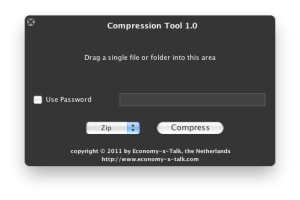
Here’s a little gift for you. A long time ago, I needed to be able to create zip files that don’t include the .DS_Store files. The zip routine of Economy-x-Talk’s Compression Tool doesn’t include these files and thus produces a nice clean file suited for distribution amongst Windows users.

Screen_shot_2011-01-30_at_20

Besides zip files, this utility also created files in gzip, tar and tgz (gzipped tar) format. All formats can be decompressed by Mac OS X, except for zip files with password protection.
For now, this utility compresses only. Decompression features may be added later. Go to our website to download Compression Tool. There, you can also read more about it.

A Game for Kids: Multiplication Bingo

Bingo_icon_128px

Economy-x-Talk and Judy Perry co-operated to create a nice attractive little game for kids. Multiplication Bingo is a fun way to learn your multiplication tables. Based upon the easy and popular game of Bingo, it presents the learner with a randomized series of multiplication problems within each multiplication family. The greater the number of correct responses, the greater likelihood of achieving bingo. There are at least two opportunities to achieve bingo for each family (included are twos through twelves).

Screen_shot_2011-01-28_at_23

The learner can select a particular family to work on or can choose from three sets of bingos containing problems from multiple families. Bright colours, easy-to-read numbers and fun sound effects combine to make this an enjoyable way to learn multiplication. Created by a teacher for her own children to learn their multiplication tables. Even though they’ve since moved beyond that need, they still love to play it. Kid tested and approved!

You can download Bingo from our website at http://bingo.economy-x-talk.com and after purchase your license is sent to you automatically —no waiting, instant joy!